Animated Strava Maps with D3.js
In a previous post, I explained how to download your Strava data using a couple of simple Python scripts. But once you’ve got a local copy of your data, what can you do with it? Well, how about an animated map of runs that builds over time?:
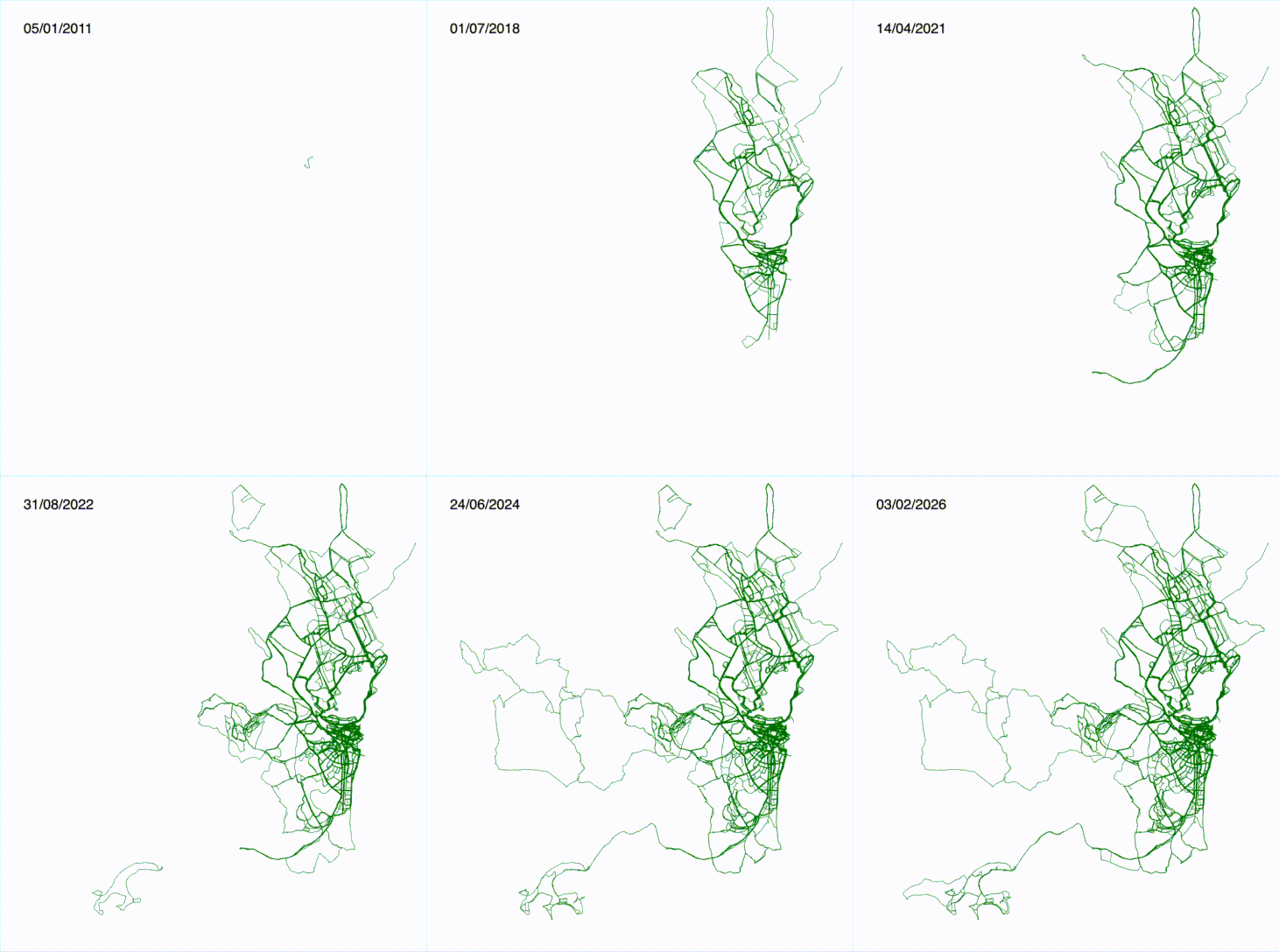
In this post, we’ll explore how to create an animated map of running routes using D3.js. We’ll assume you already have your Strava data downloaded and available as a JSON file (activities.json). Our goal is to take this raw data, convert the route information into a format D3 can understand, and then animate the drawing of each run on a map, adding a date label that updates as we go.
The code is all available in the github repository here, and this post walks through how the code works.
1. Converting Polylines to GeoJSON
Strava stores route data in the simple activity objects as encoded polylines (strings of characters like _p~iF~ps|U_ulLnnqC_mqNvxq…). To map these, we first need to convert them into GeoJSON, a standard format for encoding geographic data structures.
We can use the mapbox/polyline library for this.
// Inside our data processing loop
let mapline = run.map.summary_polyline;

// Decode the polyline string into a GeoJSON object
let route = polyline.toGeoJSON(mapline);

// We also attach the date to the properties for later use
route.properties = { date: run.start_date_local };
This gives us a LineString geometry for each run, which D3 can easily project onto an SVG.
2. Setting up the D3 Map
With our data ready, we need to set up the D3 environment. We start by defining a projection (converts lat/long to x/y pixels) and a path generator (translates GeoJSON into SVG path data).
// Define a Mercator projection
let projection = d3.geoMercator();

// Create a path generator that uses this projection
let geo = d3.geoPath().projection(projection);

// Select our container and append an SVG
let routeSVG = d3.select('.routes').append('svg')
    .attr('width', 500)
    .attr('height', 500);
In my case, we only want to draw the runs within a specific area - if we draw all the runs in the data we’ll have runs from all over the world (or at least the bits I’ve visited and run in). We define a bounding box for the geographic area from which we want to draw the runs, then filter the runs to only those who have some coordinates within that bounding box:
let cardiff = [[-3.32322, 51.38586], [-3.14065, 51.51634]];

let runs = data.filter(activity => activity.type === 'Run');
    let count = 0;
    let runsInCardiff = { type: 'FeatureCollection', features: [] };
    runs.forEach(run => {
        let mapline = run.map.summary_polyline;
        // Decode the polyline
        let route = polyline.toGeoJSON(mapline);
        route.properties = { date: run.start_date_local };
        if (route.coordinates.length > 0) {
            if (route.coordinates.some((coord) => {
                return coord[0] >= cardiff[0][0] && coord[0] <= cardiff[1][0] &&
                    coord[1] >= cardiff[0][1] && coord[1] <= cardiff[1][1];
            })) {
                count++;
                runsInCardiff.features.push(route);
            }
        }
    });
To make sure all our routes within this filtered collection fit on the screen and fill our drawing area, we use projection.fitSize() to scale the projection correctly:
// Create a MultiLineString of all runs to calculate bounds
let runRoutes = {
    type: 'MultiLineString',
    coordinates: runs.features.map(run => run.coordinates)
};

// Automatically adjust projection scale and translate to fit the 500x500 box
projection.fitSize([500, 500], runRoutes);
3. The Animation: Dasharray and Dashoffset
The core of the “drawing” effect is a clever CSS/SVG trick using stroke-dasharray and stroke-dashoffset to initially hide then slowly reveal the line.
stroke-dasharray: We set the dash pattern to belength, length. This creates a single dash that is exactly as long as the line itself, followed by a gap that is also as long as the line.stroke-dashoffset: We initially set the offset tolength. This effectively pushes the “dash” (the visible line) completely out of view, leaving only the “gap” visible. The line appears invisible.- Animation: We transition the
stroke-dashoffsetto0. This pulls the dash back into view, making it look like the line is being drawn from start to finish.
The extra element that allows us to draw the runs sequentially, rather than all the routes drawing in parallel is the delay - we stagger the start time of each transition by the length of the previous transition.
routeSVG.selectAll('path')
    .data(runs.features)
    .join('path')
    .attr('d', geo)
    .attr('fill', 'none')
    .attr('stroke', 'green')
    .attr('stroke-width', 0.5)
    // Set dasharray to [length, length]
    .style("stroke-dasharray", (d, i, j) => {
        const length = d3.select(j[i]).node().getTotalLength();
        return `${length} ${length}`;
    })
    // Hide the line by offsetting it by its full length
    .style("stroke-dashoffset", (d, i, j) => d3.select(j[i]).node().getTotalLength());

// Animate!
routeSVG.selectAll('path')
    .transition()
    .duration(50)             // Each line takes 50ms to draw
    .delay((d, i) => i * 50)  // Stagger start times (next run starts 50ms after previous)
    .ease(d3.easeLinear)
    .style("stroke-dashoffset", 0); // Reveal the line
4. Updating the Date Label
To show the date of the current run, we attach an event listener to the transition. D3 transitions emit a start event when they begin. We use this to update a text element.
First, create the text label:
let dateLabel = routeSVG.append('text')
    .attr('x', 20)
    .attr('y', 30)
    .style('font-family', 'sans-serif')
    .style('font-size', '16px')
    .text('');
Then, update it in the transition chain:
.on("start", function (d) {
    // 'd' is the data bound to the path, which includes our properties
    let date = new Date(d.properties.date);
    dateLabel.text(date.toLocaleDateString());
});
This ensures that exactly when a route starts “drawing” itself on the map, the date label updates to match that specific run.
And there you have it! A data-driven, animated map visualization using Strava data and D3.js.
Previous: Simple Strava Downloader in Python