Simple Strava Downloader in Python
Like many runners and cyclists, I use Strava to record activities, and enjoy the analysis and community aspects of the app. But I also wanted to be able to ask questions of my data that the standard dashboard couldn’t answer. I wanted a simple, reliable way to get all my activitiy data out of Strava and into a format I could easily manipulate and use within other projects.
Enter strava-data.
How It Works
This project is a compact couple of Python scripts that handle the two main hurdles of the Strava API: Authentication and Pagination.
The Authentication Dance
Strava uses OAuth 2.0, which can be a bit of a headache for simple scripts, especially if you can’t be bothered to write a whole web app to handle the authentication flow. Instead, I implemented a straightforward command line authentication flow, which is not as nice to use (there’s a bit of copy/pasting between the browser and the command line), but it gets the job done.
In order to use it, you’ll need to register for your own API application with Strava. This will give you access to your own data and is quick to do, you can register at https://www.strava.com/settings/api. Creating an API application will give you a CLIENT_ID and a CLIENT_SECRET, which you’ll use to identify yourself to Strava when authenticating to access data. You’ll need to add these into a .env file in the root directory of the project.
```env
STRAVA_CLIENT_ID=your_client_id_here
STRAVA_CLIENT_SECRET=your_client_secret_here
```
When you run the strava/authenticate.py script, it reads this .env file and generates an authorization URL for you to visit. If you click on the link, or copy and paste it into your browser, you’ll be asked to approve access to your strava data for the app. Once you approve the app in your browser, you’re redirected back to a localhost URL. This will more than likely create an error (unless you happen to have a server running on your machine that is waiting to receive such a callback request which is extremely unlikely). The fact that it gives you an error page doesn’t matter though - the information you need is in the address bar.
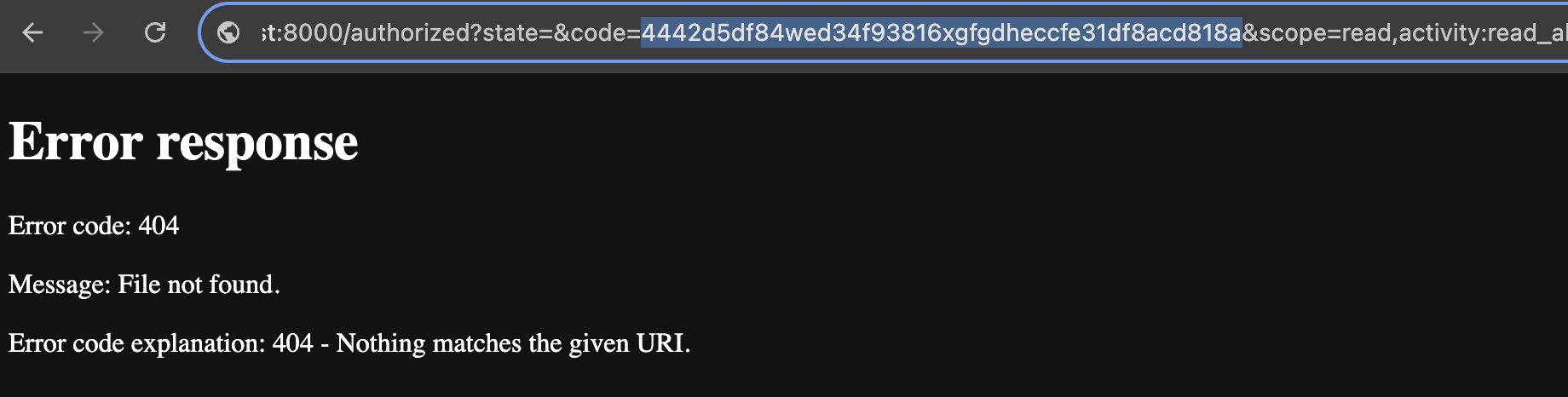
All you have to do is copy the code from that URL back into the terminal, and the script handles the rest - exchanging that code for access and refresh tokens, which are saved locally.
Smart Downloads
The core logic to get your data lives in strava/download_activities.py. It’s designed to be run repeatedly.
- Load Cache: It first checks your local
data/activities.jsonfile. - Find the Gap: It identifies the timestamp of your most recent downloaded activity.
- Fetch New Data: It asks the Strava API only for activities that happened after that timestamp.
- Update: It appends the new activities to your file and saves it.
This incremental approach is efficient and makes the most of API rate limits, ensuring we’re not hitting the API too much or too often.

Key Features
- Zero Database Overhead: Data is stored in a flat JSON file. Simple to read, simple to back up.
- Automatic Token Refreshing: The script checks if your access token is expired and uses the refresh token to get a new one automatically. You authenticate once, and it keeps working.
- Rate Limit Safe: Built on top of
stravalib, it handles the nuances of API communication.
Getting Started
If you want to try this out yourself, you’ll need a Strava account and a few minutes to set up an API application.
- Clone the repository.
- Install the dependencies:
pip install -r requirements.txt. - Set up your
.envfile with your Client ID and Secret. - Run
python strava/authenticate.pyto log in. - Run
python strava/download_activities.pyto grab your data.
From there, the sky is the limit. You can use Pandas, Plotly, or any other tool to visualize your year in running. I’ve been playing with D3 to do some animation … and I’ll talk about that in my next post.
Next: Animated Strava Maps with D3.js
Previous: Senedd 2026